The main window of EdiSIC
The main screen shows the network in two ways : - on the left with a tree-like representation - on the major part of the right with a network graph
Selections can be made on either of two representations for most features.
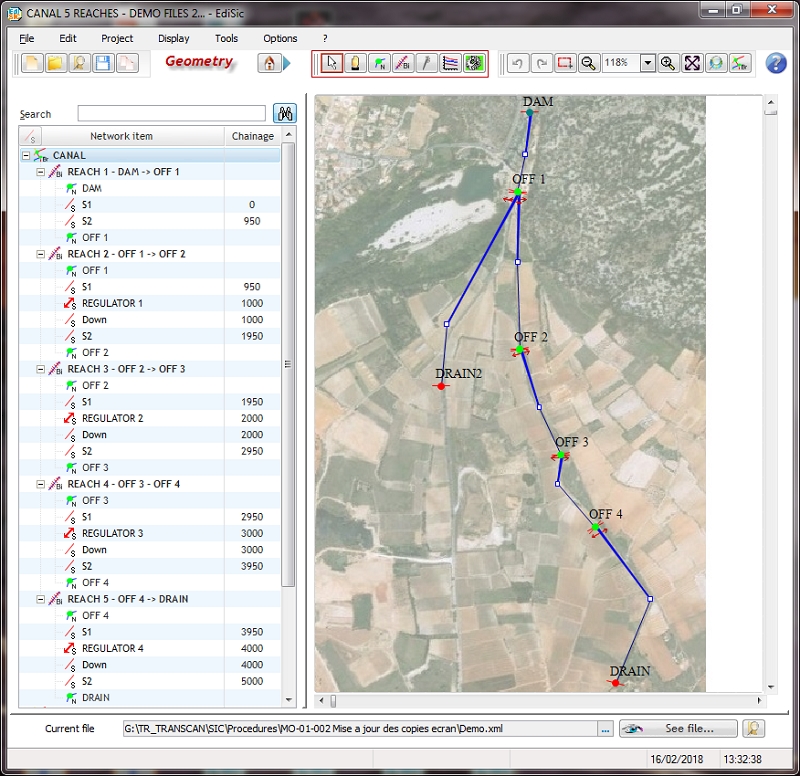
Tree view part
Search, extend and retract
The “Search” allows you to search based on part of the name of an object, or the exact or approximated abscissa of it.
Button to the left of the title bar of the tree allows extend and retract the various levels of the network.

Legend of the tree view
 | Branche | Continuous series of reaches without diffluence or confluence |
 | Reach | Continuous portion of the stream between two nodes |
 | Node | Point of reach demarcation and of offtakes integration |
 | Section | Description of a transverse profile |
 | Singular Section| Description of a transverse profile with possibility to add devices (cross structure) |
Network graph part
*File

- New document
- Open an existing document
- Open Windows ® explorer in current directory
- Save the document
- Save the document in an other file
*Tools

The available tools vary depending on the mode (geometry, hydraulic, result). They will be described in the corresponding parts of the documentation.
*Display

- Cancel previous operation
- Restore the canceled operation
- Select all objects in the network
- Zoom out
- Set the zoom
- Zoom in
- Adjust the zoom to the network (Network full page)
Bottom of the window
This part is used to display the current file with possibility of opening a new file, display the file in the default XML editor or open explorer in the current folder.

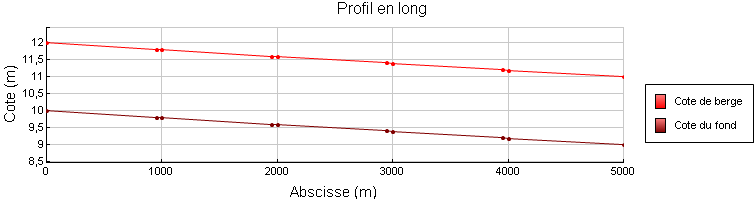
This part is also used to display graphs of longitudinal profiles in the different modes.